How to Create a Subscription
Modified on: 2025-09-17 11:20
TABLE OF CONTENTS
- Step 1: Create a Subscription
- Step 2: Subscription Settings
- Step 3: Completing Your Subscription
- Related User Guides:
Step 1: Create a Subscription
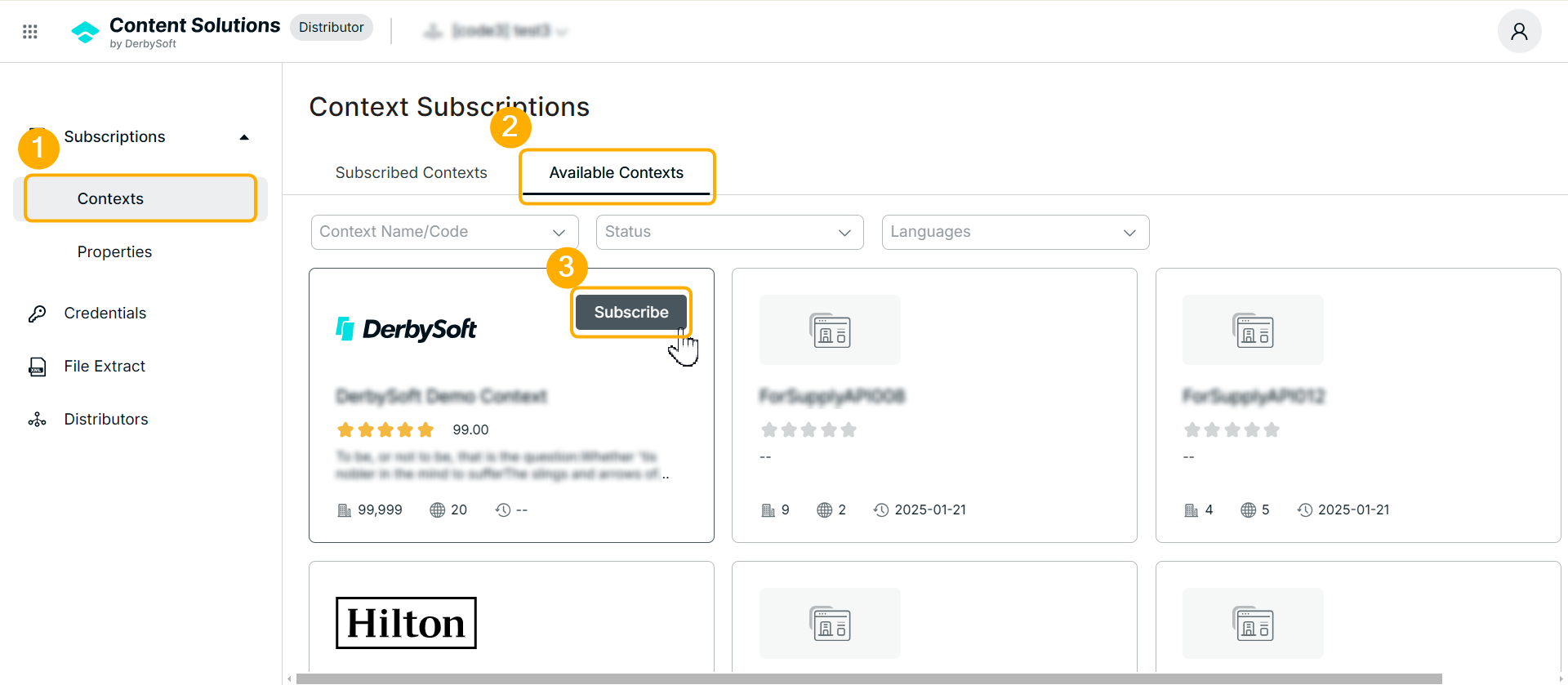
- Navigate to: Subscription > Contexts > Available Contexts
- Locate the context you want the distributor to access.
- Click Subscribe, which redirects you to the subscription settings page.
Step 2: Subscription Settings
Access Method
- API – Integrate directly via Open Distributor APIs.
- File Extract – Receive content in a file format.
- Customized – Use a custom retrieval method defined by your needs.
Select the Type of Content
Only the available content types from that specific context will be shown. For instance, if the context provides only descriptive data, you will only see a “Descriptive Content” option.
Possible content types include:
- Descriptive Content
- Multimedia
- Descriptive Content and Multimedia
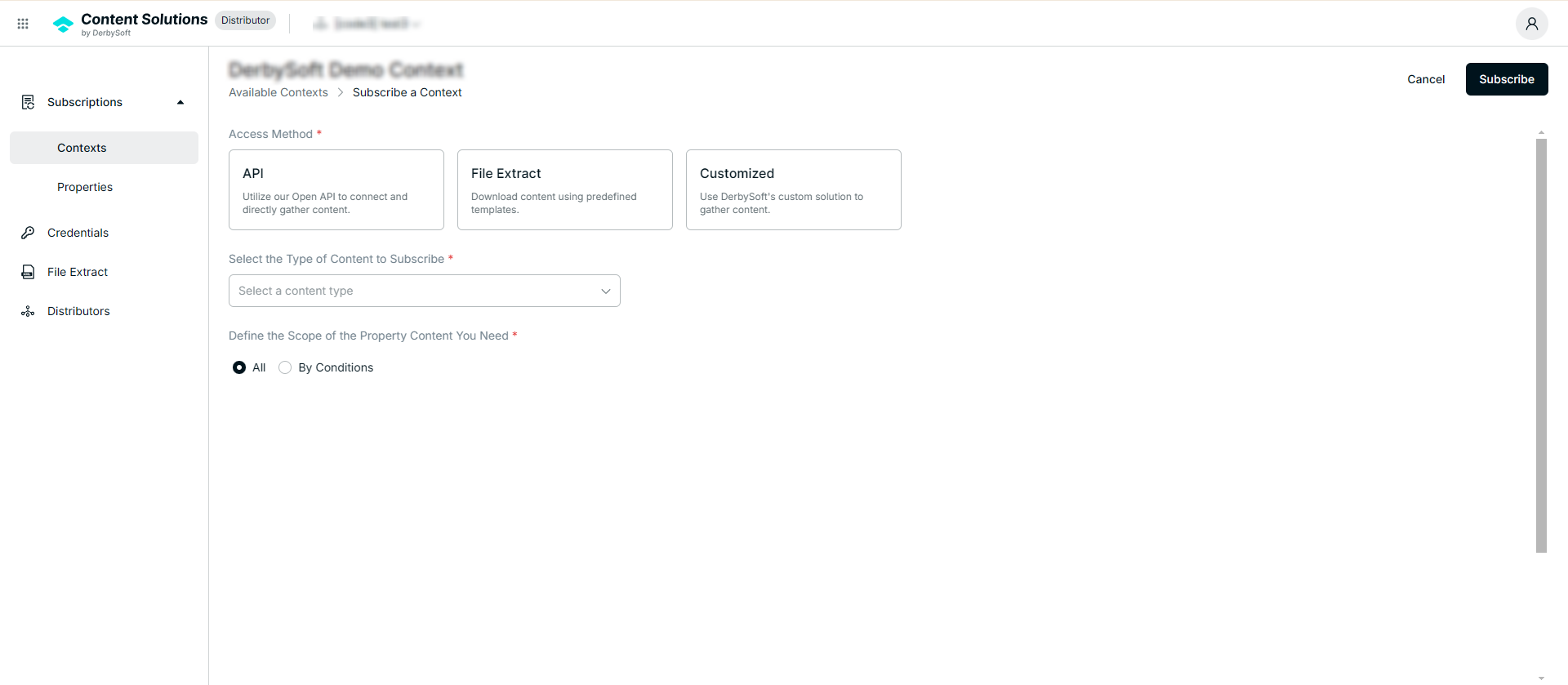
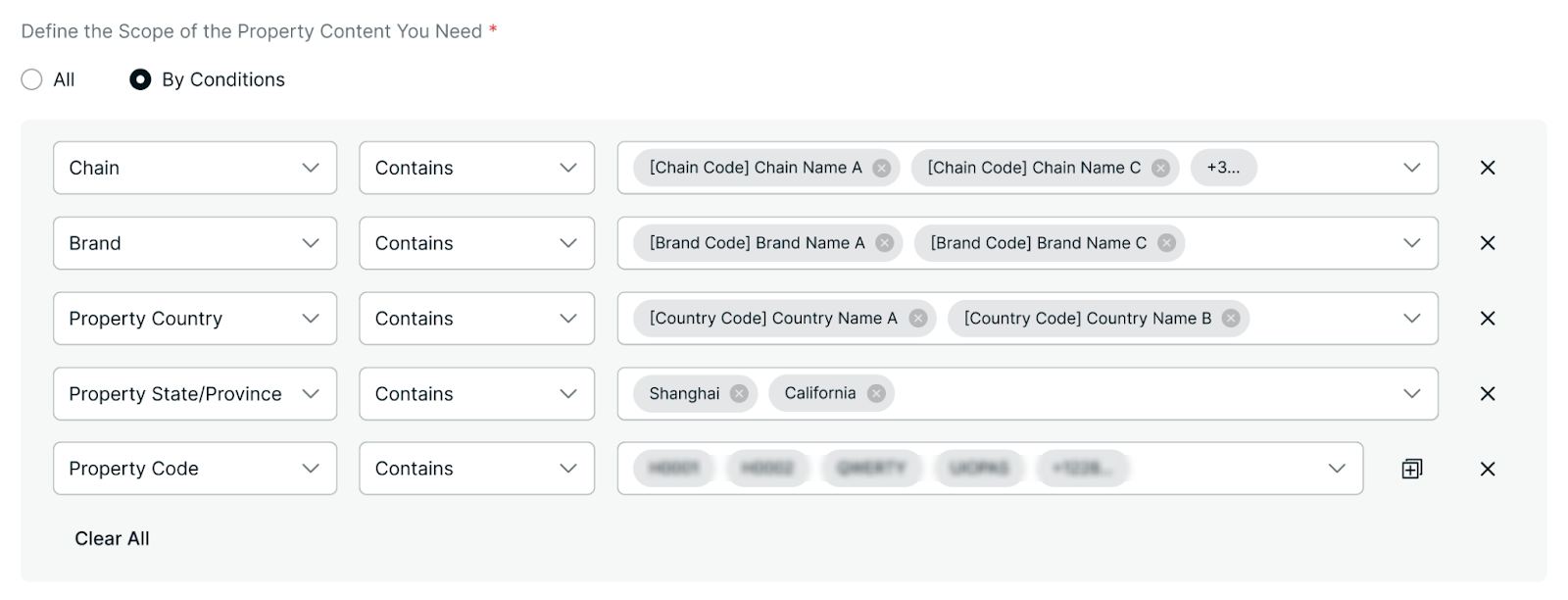
Define the Property Content Scope (API Only)
- All
- Receive all property data under this context.
- By Condition
- Filter properties by:
- Chain
- Brand
- Country
- State/Province
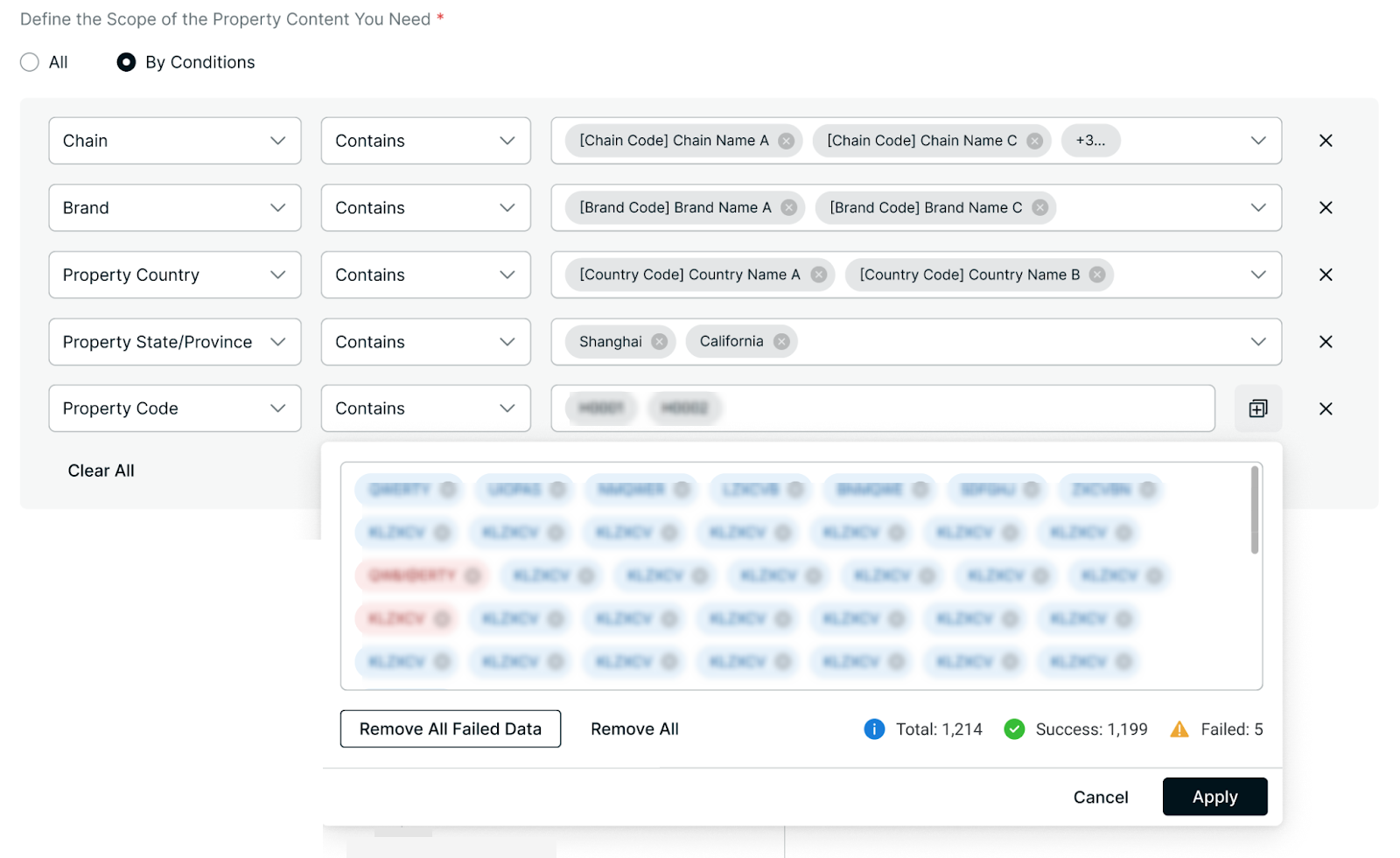
- Property Code:
- Filter properties by:
- All
Notes: If you want to filter by property code, the system will check the availability of the codes you input. Make sure they are correct before clicking the Apply button.
Step 3: Completing Your Subscription
When finished configuring your subscription, click Subscribe. You can revisit and modify these details in the Subscribed Context.
Next Steps Based on Your Access Method:
- API: Go to the Credentials section to request (or review) your integration credentials.
- File Extract: Go to the File Extract section to configure scheduling (e.g., when to generate files, and who should receive them).
- Customized: Future arrangements and details will be handled offline or via direct communication, depending on your specific needs.
When finished configuring your subscription, click Save (or an equivalent button). You can revisit and modify these details at any time.
Related User Guides:
Did you find it helpful? Yes No
Send feedbackSorry we couldn't be helpful. Help us improve this article with your feedback.