Manage Subscriptions
Modified on: 2025-05-15 10:52
After you’ve created a subscription, you can view and edit all your enabled or paused subscriptions in one place.
TABLE OF CONTENTS
- Navigating to Subscription Overview
- Subscription List Overview
- Editing a Subscription
- Pausing or Enabling a Subscription
- Related User Guides:
Navigating to Subscription Overview
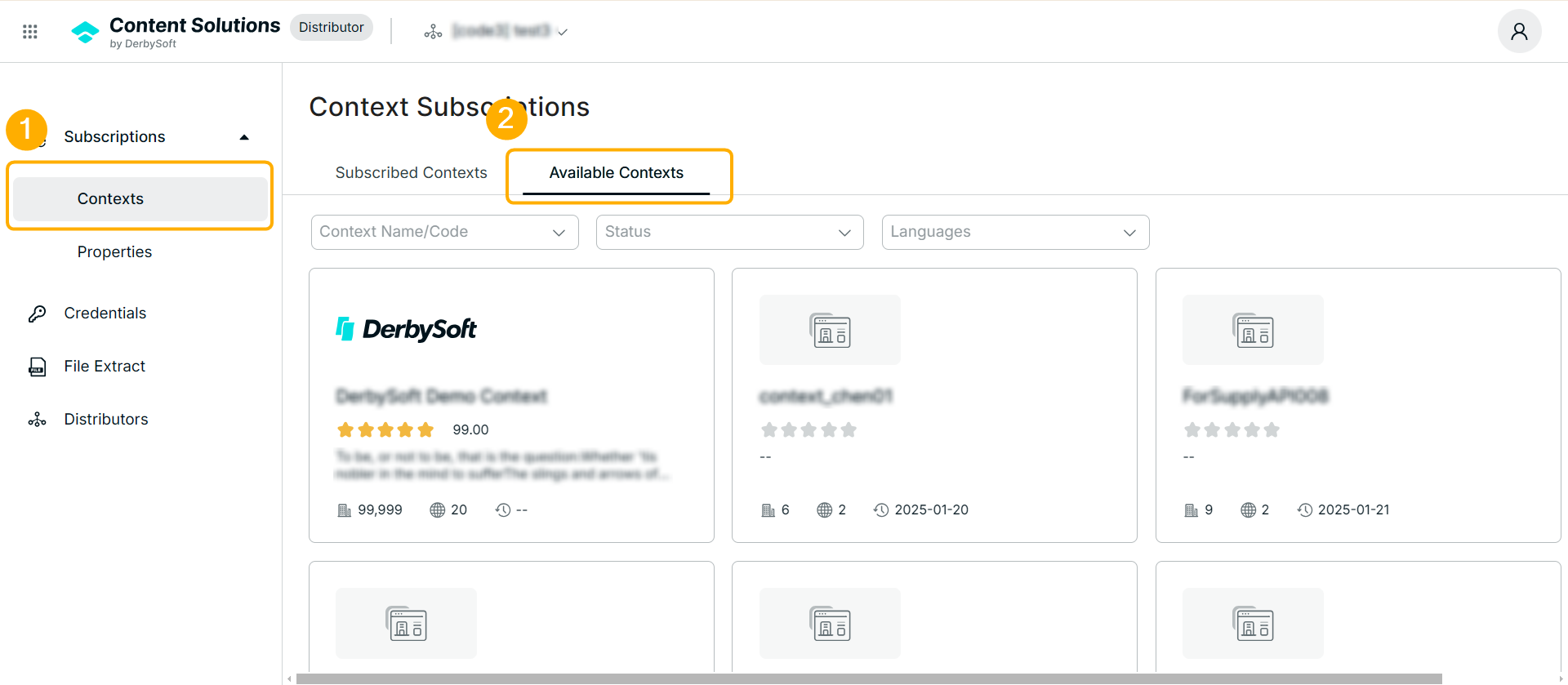
Go to Subscription > Contexts > Available Contexts.
Here, you’ll see a list of all subscriptions you own under a particular distributor account.
Subscription List Overview
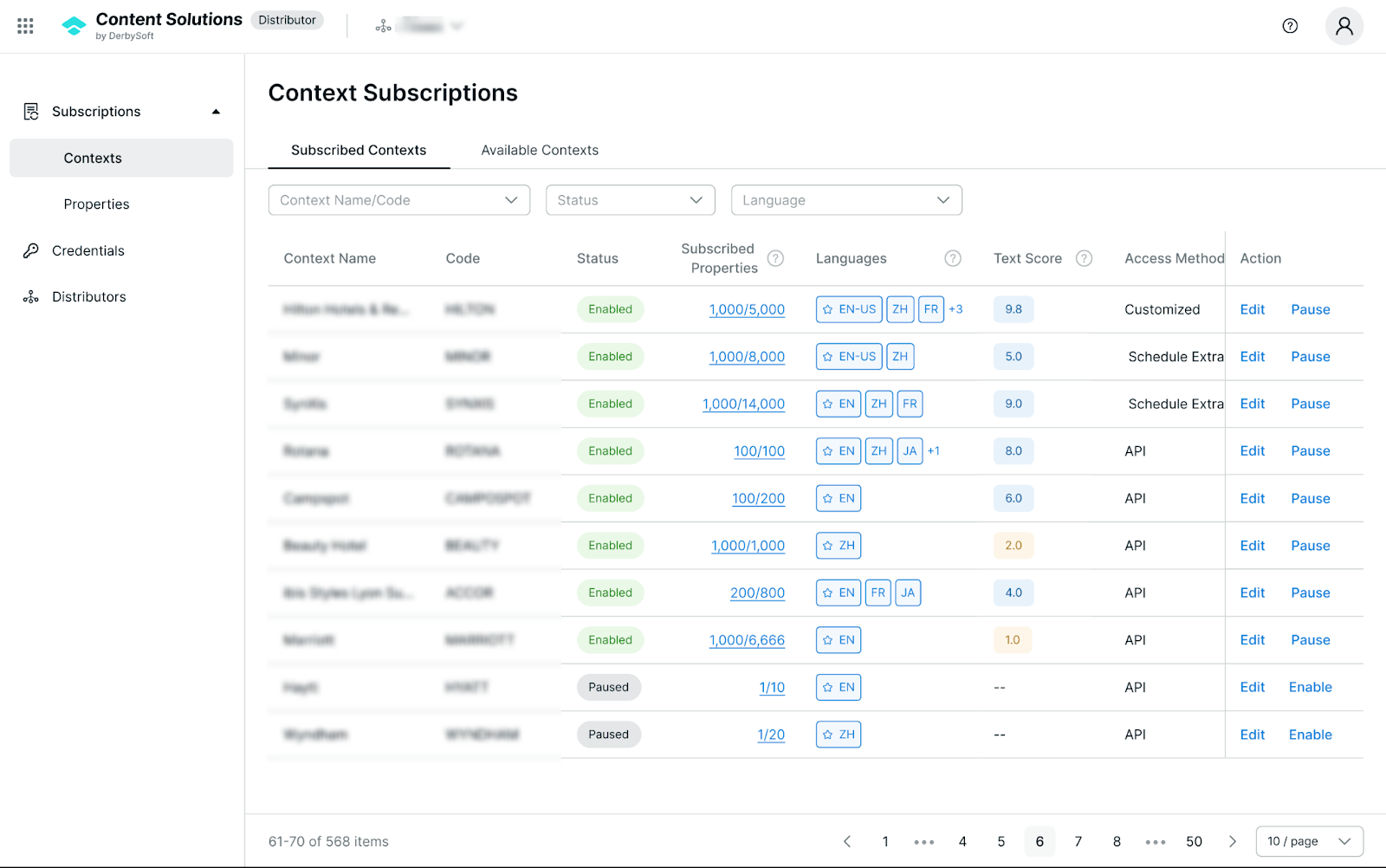
Each row in the subscription table displays key information:
Context Name
Code
Status
Subscribed Properties
Shows “X/Y” properties subscribed versus total enabled properties under this context.
Language
Lists the languages supported by the context.
Text Score
A metric indicating the quality of the text content in the primary language. Hover over the score to see top property issues.
Access Method
E.g., API, File Extract, or Customized (this is not editable).
Subscribed Categories
The descriptive content categories you have chosen (if API).
Content Type
E.g., Descriptive Content, Multimedia, or both.
Last Data Refresh
The most recent timestamp of data retrieval.
Data Refresh Frequency
How often data is automatically refreshed (e.g., daily, weekly).
Action
Edit: Modify subscription details (except Access Method).
Enable/Pause: Toggle the subscription’s status.
Editing a Subscription
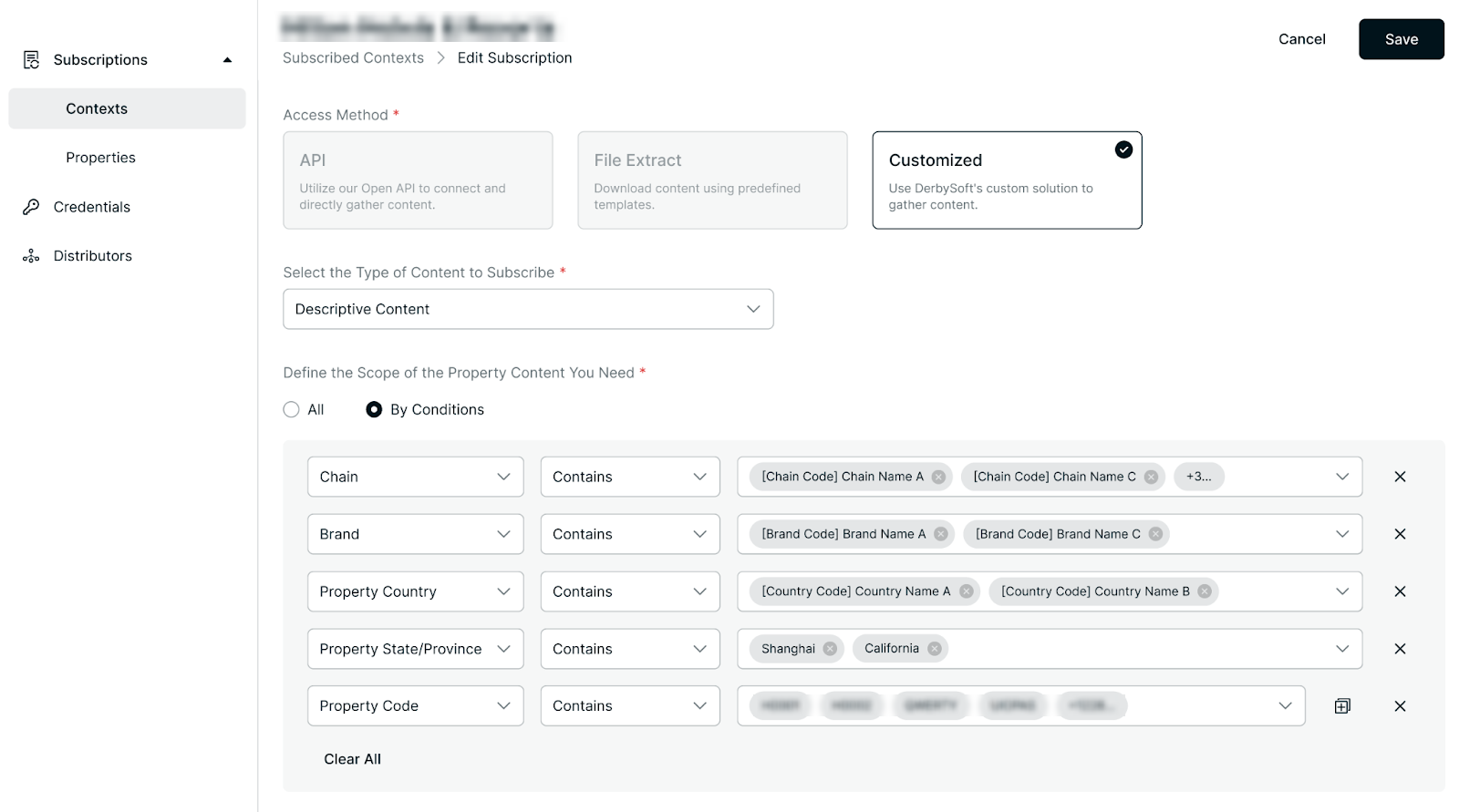
Find the subscription you want to modify.
Click Edit in the Action column.
Update any allowed fields (e.g., subscribed properties, categories).
Save your changes.
Notes:You cannot change the Access Method after a subscription is created. If you need a different method, please contact us.
Pausing or Enabling a Subscription
To pause a subscription (temporarily stop data flow), click Pause.
To enable a paused subscription, click Enable again.
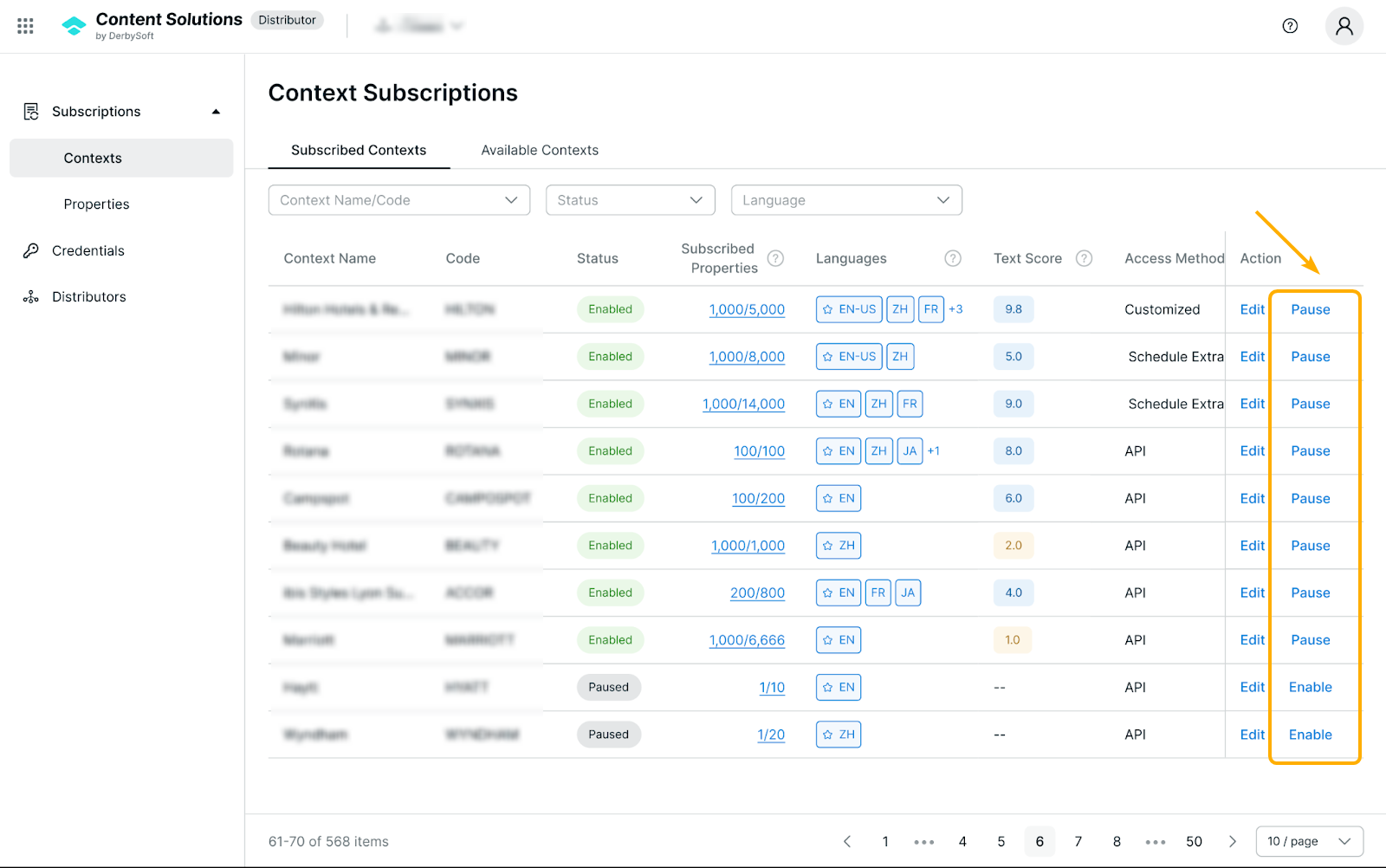
Use these controls to manage your subscriptions efficiently and keep your data up to date.
Related User Guides:
Did you find it helpful? Yes No
Send feedback